Workflow automation is one of those technologies that sounds complicated but is actually simple. If you’ve ever had to copy data from one app to another, wait for someone to complete a task before you can start yours, or manually send the same email repeatedly, you’ve experienced the exact problem automation solves.
The truth is: you probably already use automation without realizing it. Email filters that sort messages into folders? That’s automation. A spreadsheet that automatically calculates totals? Also automation. Workflow automation just extends this idea to your entire business—connecting the tools you use daily and letting them talk to each other without you in the middle.
This guide is for anyone who’s curious about automation but has never built a workflow before. No technical background required. By the end, you’ll understand what workflow automation is, why it matters, and exactly how to build your first workflow.
What Is Workflow Automation?
Workflow automation is the use of technology to perform repetitive business tasks without manual human intervention. Instead of doing something by hand every time, you set up a rule once: “When X happens, do Y automatically.”
The Core Concept
At its heart, workflow automation is about removing the middleman—and that middleman is often you. Here’s a concrete example:
Without automation: A customer fills out a form on your website. You get an email notification. You log into your CRM. You manually create a new contact record. You copy their details from the email into the CRM. You send them a welcome email. You add them to a mailing list. You log into your spreadsheet and update your prospect count. Total time: 10 minutes. If you get 20 leads a week, that’s 3+ hours of repetitive work.
With automation: A customer fills out a form. Automatically, a contact is created in your CRM, they’re added to your mailing list, a welcome email is sent, and your spreadsheet updates. Total time: 0 minutes of your effort. The workflow does it all in seconds.
What Automation Actually Does
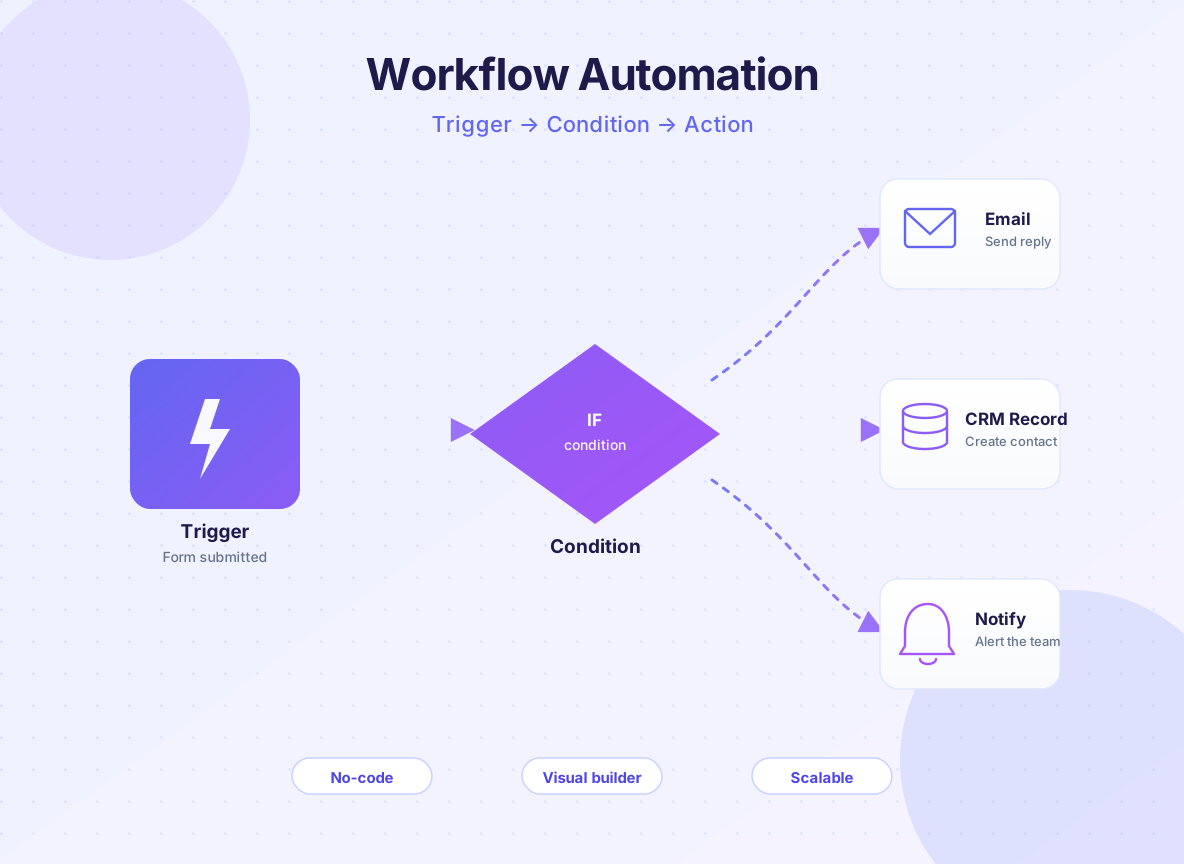
Workflow automation platforms work by connecting your apps and tools. They monitor for specific events (called “triggers”) and then perform a series of actions in response. Think of it like a recipe: IF this ingredient is added, THEN follow these steps.
The three core components of any workflow are:
Triggers — the event that starts the workflow. Examples: “When a new email arrives,” “When a form is submitted,” “When a spreadsheet row is added,” “When a payment is received.”
Conditions — optional rules that determine whether the workflow continues. Example: “If the customer’s location is the United States, then…” This lets you create intelligent workflows that behave differently based on context.
Actions — what the workflow does in response. Examples: “Send an email,” “Create a record,” “Update a spreadsheet,” “Post to Slack,” “Generate a PDF,” “Move a file.”
Real-World Examples
Let’s look at three workflows people actually use:
E-commerce order processing: When a customer places an order (trigger), the workflow automatically creates a shipment in your fulfillment system, sends a confirmation email to the customer, updates inventory, and adds the customer to a post-purchase nurture sequence. What used to take someone 15 minutes per order now happens instantly.
Lead qualification: When someone fills out a contact form (trigger), the workflow checks if they’re in your target industry (condition). If yes, it adds them to a high-priority list and notifies your sales team via Slack. If no, it adds them to a general nurture sequence. This ensures your best leads get immediate attention.
Social media posting: When you create a document in a shared folder (trigger), the workflow automatically creates a social media post, schedules it across Twitter, LinkedIn, and Facebook, and logs the links in a spreadsheet for analytics. One action creates four posts across multiple platforms.
Why Should You Automate Workflows?
Automation isn’t just about doing things faster. It’s about doing more with less, reducing errors, and freeing your team to focus on work that actually matters.
Time Savings and Efficiency Gains
The numbers here are concrete. A 2023 McKinsey report found that companies automating routine tasks save an average of 20-30% of the time spent on those tasks. For a business with three people spending 10 hours per week on manual data entry, that’s 6-9 hours per week recovered.
But the real value isn’t in the time saved per task—it’s in what you do with that time. If automating your customer onboarding process saves your team 5 hours per week, that’s 5 hours they can spend on customer success, product improvements, or business development instead of copy-pasting data.
Error Reduction
Humans are great at creative thinking, but we’re terrible at perfect repetition. Studies show that manual data entry has an error rate of 1-3% per field. In a spreadsheet with 100 rows and 10 columns, that’s 10-30 mistakes. Those mistakes cascade: a wrong email address means a customer never gets contacted. A typo in a phone number means a follow-up call never happens. A duplicate record means you contact the same person twice.
Automated workflows eliminate these errors because they follow the same logic every single time. No typos. No missed steps. No duplicates (unless you want them).
Cost Reduction
Every hour of manual work costs money—whether it’s your salary or a team member’s. If you’re spending 10 hours per week on manual tasks and you earn $50/hour, that’s $26,000 per year in labor costs for work that automation could do for free (or nearly free). Most workflow automation tools cost $20-100 per month.
The ROI is simple: if automating a workflow saves even 2 hours per week, it pays for itself in the first month.
Consistency and Compliance
When you have a process that runs the same way every time, you can guarantee consistency. Every customer gets the same onboarding experience. Every invoice is formatted identically. Every approval request follows the same workflow. This consistency builds trust and makes it easier to scale.
For regulated industries (finance, healthcare, legal), automation also helps with compliance. You can log every action, track who did what and when, and ensure nothing slips through the cracks.
Scalability Without Hiring
As your business grows, you have a choice: hire more people to do the same repetitive tasks, or automate those tasks and hire people for higher-value work. A workflow that takes 10 hours per week to run manually doesn’t suddenly require two full-time employees when you double your customer base—it still takes 10 hours of computer time.
Ready to grow your business?
Start your free trial today and see results within days.
What Are Common Workflow Automation Use Cases?
Workflow automation isn’t industry-specific. Every business has repetitive, rule-based tasks that can be automated. Here are the most common use cases across different sectors:
Marketing and Lead Generation
Lead capture and qualification: When someone fills out a form or downloads a resource, they’re automatically added to your CRM, tagged based on their answers, and routed to the right salesperson. Hot leads get a Slack notification immediately.
Email nurture sequences: When a prospect doesn’t respond to an initial email, a workflow automatically sends a follow-up after 3 days, then another after 7 days. If they engage (open an email or click a link), they move to a different sequence. No manual tracking needed.
Social media posting: Create content once, and a workflow automatically posts it across multiple platforms at optimal times, with platform-specific formatting.
Sales and Customer Management
Opportunity creation: When an email arrives from a prospect or they schedule a demo, a workflow automatically creates an opportunity in your CRM, logs the interaction, and adds them to your sales pipeline.
Contract and proposal generation: When a deal reaches a certain stage, a workflow automatically generates a contract with the customer’s details pre-filled, sends it for signature, and updates your CRM when it’s signed.
Customer onboarding: From the moment a customer signs up, a workflow sends them a welcome email, creates their account, assigns them a success manager, schedules their kickoff call, and adds them to training resources.
Operations and Administration
Invoice and payment processing: When an invoice is created, a workflow automatically sends it to the customer, logs it in accounting software, and creates a reminder to follow up if it’s not paid within 30 days.
Expense management: When an employee submits an expense report, a workflow routes it to the right manager for approval, logs it in your accounting system, and automatically reimburses the employee once approved.
Document management: When a document is added to a folder, a workflow automatically files it in the right location, tags it, creates a backup, and notifies relevant team members.
Customer Support and Service
Ticket routing: When a support ticket arrives, a workflow reads the content, categorizes it (billing, technical, feature request), and routes it to the right team. Urgent issues get flagged for immediate attention.
Customer follow-up: After a support ticket is closed, a workflow automatically sends a satisfaction survey after 1 day and a check-in email after 7 days.
Knowledge base updates: When a support ticket is resolved, a workflow checks if the solution already exists in your knowledge base. If not, it creates a draft article for review.
Human Resources and Recruiting
Job applicant screening: When resumes arrive, a workflow scans them for keywords, scores candidates, and automatically sends rejection or next-step emails.
Onboarding new hires: From offer acceptance through day one, a workflow creates accounts, sends welcome materials, schedules training, and ensures equipment is ordered.
Employee offboarding: When someone leaves, a workflow revokes access, backs up their files, notifies relevant teams, and creates a knowledge transfer checklist.
Understanding the mechanics of automation helps you think about what’s possible. Most workflow automation tools work the same basic way, using a visual builder that requires no coding.
The Visual Workflow Builder
Instead of writing code, you drag and drop components onto a canvas. Each component represents a trigger, condition, or action. You connect them with lines to show the flow of data.
Here’s what a typical workflow looks like visually:
[Form Submission] → [Add Contact to CRM] → [Send Welcome Email] → [Update Spreadsheet]
                          ↓
                    [Is VIP Customer?] → Yes → [Send VIP Welcome Email]
                          ↓
                         No → [Send Standard Email]
The workflow reads top-to-bottom and left-to-right. Data flows from one step to the next. If a condition is true, the workflow takes one path; if false, it takes another.
How Data Flows Through a Workflow
When a trigger fires, the workflow captures the data from that event. If a form is submitted, the workflow captures all the form fields. If an email arrives, the workflow captures the sender, subject, and body. This data then flows through each step.
At each step, you can use that data. For example, if the form captured “First Name,” you can use that in the welcome email: “Hi {First Name}, thanks for signing up!” The tool automatically replaces {First Name} with the actual value from the form.
This is powerful because you don’t have to re-enter data. It moves through your workflow automatically, being transformed and used by each step.
Error Handling and Notifications
Real workflows sometimes fail. An API might be down. A field might be missing. A third-party app might reject the data. Good automation tools have error handling built in.
You can set up rules like: “If this step fails, retry it 3 times, then send me a notification.” Or: “If the email send fails, add the contact to a manual queue for me to follow up on.”
Most tools also let you set up success notifications: “Send me a daily summary of how many workflows ran today and if any failed.”
Conditional Logic and Branching
The most powerful workflows use conditions to make decisions. Instead of running the same action for every trigger, you can branch based on data.
Example: “When a customer purchases an item, check their order value. If it’s over $100, add them to the VIP list and send them a special thank-you gift. If it’s under $100, add them to the standard list and send a standard thank-you email.”
This conditional logic is what separates simple automations from intelligent ones. It’s also why workflow automation is so much more flexible than just using email filters or spreadsheet rules.
Join our newsletter
Get latest tips, trends, and deals for free.
What Key Features Should You Look For?
Not all automation tools are created equal. When you’re evaluating tools, here are the features that matter most for beginners:
| Feature | Why It Matters | What to Look For |
|---|
| Visual Workflow Builder | You shouldn’t need to code. A drag-and-drop interface makes workflows accessible. | Can you build a workflow without writing a single line of code? Can you see the entire flow visually? |
| Pre-Built Templates | Starting from scratch is intimidating. Templates for common use cases (lead capture, invoice processing, etc.) let you automate quickly. | Does the tool have templates for your industry or use case? Can you customize templates easily? |
| App Integrations | Your workflow is only as good as the tools it connects. More integrations = more possibilities. | Does it connect to the apps you already use? Are integrations easy to set up? |
| Conditional Logic | Simple workflows are useful, but conditional logic lets you create intelligent automations that respond to context. | Can you easily set up “if/then” conditions? Can you handle multiple conditions? |
| Error Handling | Things go wrong. You need visibility when they do. | Can you see when workflows fail? Can you set up notifications or retry logic? |
| Pricing and Limits | Automation should be affordable, especially for beginners. Watch out for tools that charge per workflow or per execution. | Is pricing based on usage (number of workflow runs) or fixed? Are there free tiers? |
| Support and Documentation | When you get stuck, you need help fast. | Is there documentation? Live chat support? Community forums? Video tutorials? |
| Data Security | Your workflows will handle sensitive data. You need to know it’s protected. | Does the tool encrypt data? Is it SOC 2 compliant? Does it meet your industry’s requirements? |
FlowHunt stands out because it combines a visual, beginner-friendly builder with pre-built templates and integrations with 500+ apps. Unlike more complex platforms, it’s designed specifically for non-technical users who want results without a steep learning curve.
How Do You Build Your First Workflow?
The best way to understand workflow automation is to build one. Let’s walk through a real example step-by-step: automating lead capture from a contact form.
Step 1: Identify the Trigger
Start by asking: “What event should start this workflow?” In this case, it’s “When someone submits a contact form.”
In your automation tool, you’d select your form tool (Typeform, Gravity Forms, etc.) and choose “New Form Submission” as the trigger. The tool will ask you which form to monitor. You select it, and you’re done with the trigger.
Step 2: Map the Data
Next, the tool shows you what data the form captures. You see fields like “First Name,” “Email,” “Company,” “Message,” etc. This is the data your workflow will work with.
At this point, you might want to test the trigger to make sure it’s working. You’d submit a test form, and the tool would show you the data it captured.
Step 3: Add Your First Action
Now you add what happens when the trigger fires. Let’s add “Send an email to the person who submitted the form.”
You’d:
- Click “Add Action”
- Select “Email”
- Choose “Send Email”
- Enter the recipient: {Email} (the email field from the form)
- Write the subject: “Thanks for reaching out!”
- Write the body: “Hi {First Name}, thanks for your message. We’ll get back to you within 24 hours.”
Notice how you’re using the form data ({Email}, {First Name}) in your action. The workflow automatically fills in the actual values.
Step 4: Add a Second Action
Let’s add another step: create a new contact in your CRM.
You’d:
- Click “Add Action”
- Select your CRM (HubSpot, Salesforce, etc.)
- Choose “Create Contact”
- Map the fields: First Name → {First Name}, Email → {Email}, Company → {Company}, etc.
Now your workflow does two things: sends an email AND creates a contact in your CRM.
Step 5: Add a Condition (Optional)
Let’s make the workflow smarter. What if you only want to create a contact if they’re from your target industry?
You’d:
- Add a Condition after the trigger
- Set it up: “If Industry equals ‘Technology’ or ‘Finance’, then continue”
- If the condition is true, the workflow proceeds to send the email and create the contact
- If false, the workflow stops (or you could add an alternate action for non-target industries)
Step 6: Test and Activate
Before going live, you test the workflow:
- Submit a test form
- Watch the workflow run in real-time
- Verify the email was sent
- Check that the contact was created in your CRM with the right data
Once you’re confident it’s working, you activate it. Now it runs automatically every time someone submits the form.
Step 7: Monitor and Refine
After a few days or weeks, check on your workflow:
- How many times did it run?
- Did any fail? (If so, why?)
- Is the data coming through correctly?
- Are there any steps you’d like to add or change?
Based on what you learn, you might add additional actions (like adding the contact to a mailing list), change the condition (to target different industries), or modify the email message.
What Are Common Mistakes Beginners Make?
Even with the best tools, beginners often stumble in predictable ways. Here’s what to watch out for:
Mistake 1: Automating Without Understanding the Current Process
Before you automate, you need to understand what you’re automating. If your current process is broken or inefficient, automating it just makes the problem faster.
How to avoid it: Document your current process first. Write down every step, every decision point, every tool involved. Then look for inefficiencies. Once you’ve optimized the process, automate it.
Mistake 2: Automating Too Early in the Workflow
Beginners often try to automate an entire end-to-end process in one workflow. This is overwhelming and leads to failures because there are too many moving parts.
How to avoid it: Start small. Automate a single, isolated task first. Once that’s working reliably, add another step. Build up gradually.
Example: Don’t try to automate “entire customer onboarding” on day one. Start with “send welcome email when customer signs up.” Once that’s solid, add “create account in accounting software.” Then add “schedule kickoff call.” Each step is a separate, testable piece.
Mistake 3: Not Testing Before Going Live
The worst time to discover a bug in your workflow is after it’s been running for a week and has processed 100 customer records incorrectly.
How to avoid it: Always test with real data before activating. Submit a test form, make a test purchase, or create a test record—whatever triggers your workflow. Watch it run. Verify the output. Check that data landed in the right place. Only then activate it for real.
Mistake 4: Ignoring Error Handling
Workflows fail. APIs go down. Data is incomplete. If you don’t plan for failures, you’ll lose data or have incomplete processes.
How to avoid it: When you set up a workflow, add error handling. Tell the tool what to do if a step fails. Should it retry? Should it notify you? Should it add the record to a manual queue? Decide this upfront.
Mistake 5: Not Cleaning Data Before Automating
If your source data is messy (inconsistent formatting, typos, missing fields), your automation will propagate those problems.
Example: If your form allows “Company” to be entered freeform, you’ll get variations like “Apple,” “apple,” “Apple Inc.,” “APPLE.” When you try to match against a list of companies, none of these match perfectly.
How to avoid it: Clean your data before it enters the workflow. Use data validation (dropdown menus instead of freeform text). Use conditional logic to standardize data (convert all company names to title case). Use lookup functions to match against a master list.
Mistake 6: Over-Automating and Losing Control
Not everything should be automated. Some decisions need human judgment. If you automate too aggressively, you might charge a customer twice, delete important data, or send a message at the wrong time.
How to avoid it: Start with low-risk automations. Automate notifications and data entry, not critical business decisions. For high-stakes actions (like charging a customer or deleting data), add a manual approval step.
Mistake 7: Not Monitoring Workflows After They’re Live
You activate a workflow and assume it will work forever. Then one day the API changes, or a field disappears, and the workflow silently fails for a week.
How to avoid it: Check your workflows regularly. Most tools have dashboards showing how many workflows ran, how many failed, and error details. Set up notifications for failures. Review workflows monthly to see if they need updates.
What Are Workflow Automation Best Practices?
Once you’ve built a few workflows, you’ll develop intuition about what works. Here are the practices that separate reliable automations from brittle ones:
Do: Start With Your Biggest Pain Point
Don’t automate randomly. Identify the task that wastes the most time, causes the most errors, or frustrates your team most. That’s your first automation target. Success here builds momentum and credibility for future automations.
Do: Document Your Workflows
When you build a workflow, add notes and descriptions. “This workflow processes orders received via email” is more helpful than leaving it untitled. Future you will thank present you when you need to modify it.
Do: Use Conditional Logic to Handle Edge Cases
Real data is messy. Use conditions to handle variations. “If email domain is @company.com, treat as internal. Otherwise, treat as external.” These conditions make your workflows robust.
Do: Test Changes Before Deploying
If you modify a workflow, test it in a sandbox or with test data before it goes live. A small bug in a workflow that runs 100 times per day becomes a big problem fast.
Do: Monitor Key Metrics
Track how many workflows run daily, how many fail, and what the most common errors are. This data tells you where to focus improvements.
Don’t: Automate Decisions That Need Human Judgment
Automating “send an email” is safe. Automating “delete records older than 30 days” is risky. If there’s any chance the decision could be wrong, add a human review step.
Don’t: Ignore Data Quality
Garbage in, garbage out. If your source data is inconsistent or incomplete, your automation will be too. Invest in data quality upfront.
Don’t: Forget About Scaling
A workflow that works fine for 10 customers might break at 100 customers. Think about scale when you design. Will your workflow still work if it runs 10 times as often?
Don’t: Set It and Forget It
Workflows need maintenance. Apps update APIs. Business processes change. Review your workflows quarterly and update them as needed.
How Do You Measure Success?
Automation should deliver measurable business value. Here’s how to track whether your workflows are actually working:
Time Savings
This is the easiest metric to track. How long did the manual task take? How long does the automated workflow take? The difference is your time savings.
Example: If lead entry took 10 minutes per lead and you get 20 leads per week, that’s 200 minutes (3.3 hours) per week. If the workflow does it instantly, you’ve saved 3.3 hours per week, or 172 hours per year.
Multiply this by your hourly rate to get the cost savings: 172 hours × $50/hour = $8,600 per year.
Error Reduction
Track how many errors the manual process produced and how many the automated process produces.
Example: Manual data entry had a 2% error rate. For 1,000 entries per month, that’s 20 errors. The automated workflow has a 0.1% error rate (mostly from source data issues), so 1 error per month. You’ve reduced errors by 95%, saving time on corrections and preventing customer issues from bad data.
Process Completion Rate
Some workflows involve multiple steps. Track how many complete successfully vs. how many fail or get stuck.
Example: Your lead qualification workflow runs 100 times per week. 98 complete successfully, 2 fail due to API timeouts. That’s a 98% completion rate. You’d want to investigate the 2 failures and add retry logic.
Customer Satisfaction and NPS
If your workflow affects customers, measure their satisfaction. Did automating onboarding improve customer satisfaction? Did automating support ticket routing reduce response time?
Example: Before workflow automation, your average first response time was 8 hours. After automating ticket routing, it’s 2 hours. Customer satisfaction scores increased from 7.2 to 8.1 out of 10.
Cost Savings
Calculate the total cost of the manual process vs. the automated process.
Manual cost: (Time spent × hourly rate) + (Errors × cost to fix)
Automated cost: (Workflow tool subscription) + (Time to set up and maintain)
Example:
- Manual: 5 hours/week × $50/hour + 5 errors/week × $20 to fix = $350/week = $18,200/year
- Automated: $50/month tool + 2 hours/month maintenance at $50/hour = $700/year
- Savings: $18,200 - $700 = $17,500/year
ROI and Payback Period
Calculate how long it takes for the automation to pay for itself.
Payback period = Cost to set up / Monthly savings
Example: It took 8 hours to set up the workflow ($400 at $50/hour). Monthly savings are $500. Payback period = $400 / $500 = 0.8 months. The automation pays for itself in less than a month.
Workflow Adoption Rate
If you’re automating for a team, track how many people use it and how often. Low adoption means the workflow isn’t solving a real problem or isn’t easy to use.
Example: You built a workflow to help the sales team, but only 3 out of 10 salespeople use it. That’s a red flag. You’d want to talk to the team about why and either improve the workflow or focus on a different problem.
With hundreds of automation platforms available, how do you pick the right one? Here’s a framework:
Assess Your Needs First
Before looking at tools, define what you need:
- What specific workflows do you want to automate?
- What apps do you need to connect?
- How technical is your team?
- What’s your budget?
- Do you need advanced features like conditional logic, or just simple triggers and actions?
Evaluate Integration Coverage
Your workflow is only as good as the tools it connects. Make a list of the apps you use daily (CRM, email, spreadsheets, payment processor, etc.). Check if your potential automation tool integrates with all of them.
Red flag: A tool that only integrates with 50 apps when you need 10 specific ones that aren’t on the list.
Check Ease of Use
The best automation tool is the one you’ll actually use. Sign up for a free trial and try to build a simple workflow without watching tutorials. If you get stuck immediately, it’s probably too complex.
Good sign: You can build a basic workflow in 10 minutes without documentation.
Compare Pricing Models
Automation tools charge in different ways:
- Per workflow: You pay for each workflow you create. This gets expensive fast.
- Per execution: You pay for each time a workflow runs. This scales with your usage but can be unpredictable.
- Per user: You pay per team member who can create workflows. Good if you have multiple people building.
- Flat monthly fee: You pay a fixed amount regardless of usage. Predictable and good if you’ll run lots of workflows.
Best for beginners: Flat monthly fee or freemium model where you can start free and upgrade as you grow.
Look for Pre-Built Templates
Templates let you automate common tasks immediately without building from scratch. The more templates, the faster you can get value.
Check Support Quality
When you get stuck (and you will), you need help. Look for:
- Video tutorials and documentation
- Live chat support
- Community forums
- Email support with reasonable response times
Consider Future Growth
Pick a tool that can grow with you. If you start with simple automations, you might need advanced features later (like conditional logic, multi-step workflows, or API access). Make sure your tool can handle that.
Compare Popular Options
Here’s how the major automation tools stack up for beginners:
| Tool | Best For | Ease of Use | Pricing | Integrations | Templates |
|---|
| FlowHunt | Non-technical users, visual workflows | ⭐⭐⭐⭐⭐ | $25-100/mo | 500+ | 100+ |
| Zapier | Simple automations, broad app support | ⭐⭐⭐⭐ | Free-$600/mo | 6,000+ | 500+ |
| Make (formerly Integromat) | Slightly more complex workflows | ⭐⭐⭐ | Free-$500+/mo | 1,000+ | 100+ |
| n8n | Self-hosted, developer-friendly | ⭐⭐ | Free (self-hosted) | 500+ | 50+ |
| IFTTT | Very simple automations, mobile | ⭐⭐⭐⭐⭐ | Free-$10/mo | 700+ | 100+ |
For beginners, FlowHunt offers the best balance of ease of use and power. Its visual workflow builder requires zero coding, templates get you started in minutes, and the support team is responsive to non-technical users.
Frequently Asked Questions
(Auto-generated from frontmatter FAQ section)
Getting Started: Your Next Steps
You now have a solid understanding of what workflow automation is, why it matters, and how to build your first workflow. Here’s how to move forward:
1. Identify one workflow to automate. Don’t try to automate everything at once. Pick the task that wastes the most time or causes the most frustration.
2. Document the current process. Write down every step, every decision, every tool involved. This clarity will make the automation easier.
3. Sign up for a free trial. Most automation tools offer free trials. Use it to build your first workflow with real data. Don’t just watch tutorials—actually build something.
4. Start simple. Your first workflow should be straightforward: one trigger, maybe one condition, 2-3 actions. Complexity comes later.
5. Test thoroughly. Before activating, run test cases. Submit a test form. Create a test record. Verify the workflow does what you expect.
6. Monitor and iterate. After your first workflow runs for a week or two, check in. Did it work as expected? Are there errors? Would adding another step make it more valuable?
7. Build on success. Once your first workflow is running smoothly, build the next one. Each workflow you create makes the next one easier.
The businesses that win with automation aren’t the ones that automate everything overnight. They’re the ones that start small, learn from each workflow, and gradually build a library of automations that compound over time.
{{ cta-dark-panel
heading=“Ready to Automate Your First Workflow?”
description=“FlowHunt makes it easy to build automations without code. Start with pre-built templates or create your own in minutes.”
ctaPrimaryText=“Try FlowHunt Free”
ctaPrimaryURL=“https://app.flowhunt.io/sign-in"
ctaSecondaryText=“Book a Demo”
ctaSecondaryURL=“https://www.flowhunt.io/demo/"
gradientStartColor="#6366f1”
gradientEndColor="#8b5cf6”
gradientId=“automation-guide-cta”
}}